Skip to content

Windows Security Tools

4 files

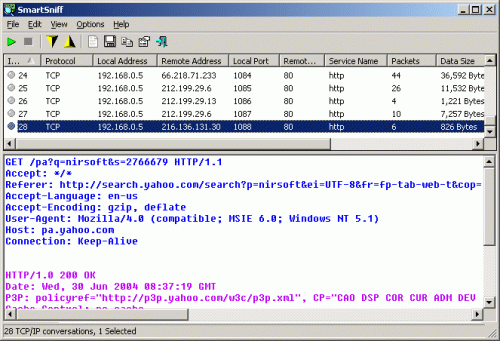
  1. SmartSniff is a free packet sniffing tool that allows you to capture TCP/IP packets passing through your network adapter and view the captured data as a sequence of conversations between clients and servers. With the help of this network monitoring utility, you can view TCP/IP conversations in ASCII mode or as a hex dump.
    • 217 Downloads
    Updated
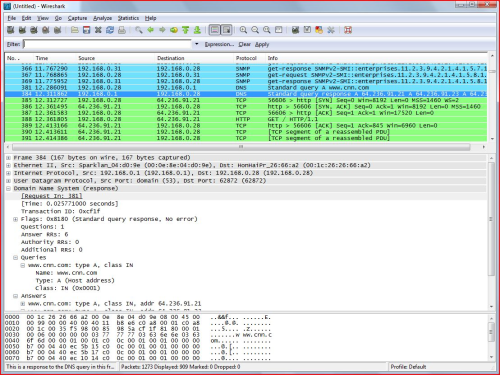
  2. Wireshark is one of the popular free packet sniffing tools for Windows. This tool can give you an ability to see what’s happening on your network at a microscopic level.
    • 189 Downloads
    Updated
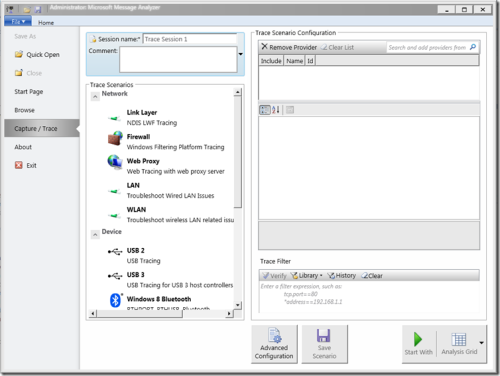
  3. Microsoft Message Analyzer is a tool for capturing, displaying, and analyzing protocol messaging traffic. It is the successor to NetMon 3.x and a key component of the Protocol Engineering Framework (PEF), created by Microsoft to improve protocol design, development, documentation, testing, and support. With Message Analyzer, you can capture live data or retrieve archived message collections from saved files such as traces and logs. Message Analyzer also allows you to display data in a default tree grid view as well as selectable graphical views that employ grids, charts, and timeline visualizer components, providing high-level data summaries and other statistics.
    Update: Microsoft Message Analyzer (MMA) was retired as of November 25, 2019. There is currently no Microsoft replacement for Microsoft Message Analyzer in development.
    Note: I would say it is a must-have tool for any network administrator, given how much you can accomplish with it. A dedicated TechNet blog for Microsoft Message Analyzer is available.

    • 161 Downloads
    Updated
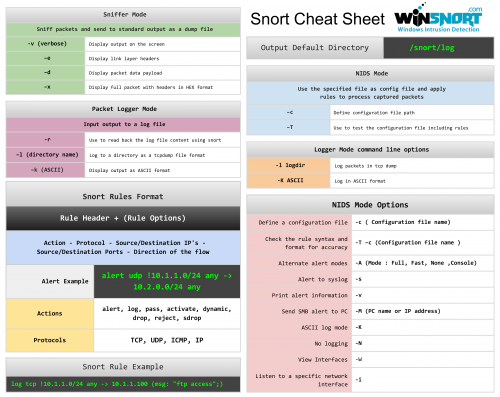
  4. The Snort Cheat Sheet covers the following topics:
    Sniffer mode, Packet logger mode, and NIDS mode operation Snort rules format Logger mode command line options NIDS mode options Alert and rule examples
    • 11 Downloads
    Updated

Important Information

We have placed cookies on your device to help make this website better. You can adjust your cookie settings, otherwise we'll assume you're okay to continue.

Account

Navigation

Search

Search

Configure browser push notifications

Chrome (Android)
  1. Tap the lock icon next to the address bar.
  2. Tap Permissions → Notifications.
  3. Adjust your preference.
Chrome (Desktop)
  1. Click the padlock icon in the address bar.
  2. Select Site settings.
  3. Find Notifications and adjust your preference.