


Morpheus
Administrators
-
Joined
-
Last visited
Files posted by Morpheus
-
=============================================================================== WinIDS v4.1 Deployment Framework – Remote Node & Host Conversion Install Guide Copyright © 2026 WinSnort.com | Michael Steele =============================================================================== Operational Overview
This toolkit provides the instructions required to convert a standalone sensor into a Master Host and it also facilitates the deployment of a WinIDS Remote Node. This architecture will enable decentralized packet inspection paired with centralized logging to either a PostgreSQL or MySQL database.
Architectural Prerequisites
• Active Instance : A functional Standalone WinIDS Sensor is required. • Node Conversion : This process upgrades a Standalone Sensor to a Master Management Server role and initializes the Remote Node environment. Phase I: Pre-Deployment Specifications
• Target Environment : Optimized for clean OS installations. • Archive Integrity : Extract all package contents to a dedicated directory. • Archive Security : w1nsn03t.c0m Phase II: Master Server Provisioning
To allow inbound database traffic, the Master Management Server must be provisioned prior to remote node initialization. Ensure you have the Remote Node IP address ready before beginning.
Access the $WinIDSRoot\tools directory on the Master Host.
Right-click InitializeNode.exe and select Run as Administrator. From the menu options, press the A key to add an IP, and enter the IP address of the remote node at the input prompt.
Technical Impact: This utility automates Windows Firewall scoping and configures database permissions for the specified $RemoteIP.
Upon completion, the executable will display the configuration details required for the remote node setup.
>>> REMOTE NODE CONFIGURATION DETAILS Use the following settings on Remote Node (redacted) ------------------------------------------------------------ [•] Master Host Database Username: (redacted) [•] Master Host Database Password: (redacted) [•] Master Host IP Address : (redacted) [•] MySQL Host Database Port : (redacted) ------------------------------------------------------------ [SUCCESS] Configuration complete. Press any key to return to menu... The values displayed will include the Master Host Database Username, Master Host Password, Master Host IP Address, and MySQL/PostgreSQL Host Database Port.
Record these values; they are required for Phases III and IV of this guide.
Note: Run this process to add each new remote node.
Phase III: Connectivity & Validation
Perform these steps on the Remote Node. You will need the Master Host IP and Database Port recorded during Phase II.
Note: This step only verifies the connection from the Node to the Host.
Navigate to the remote node and access its local extraction directory.
Right-click Node2Host.exe, select Run as Administrator, and enter the IP address of the Master Host. Next, it will prompt for the Database port. If using the default port, press Enter to initiate an automated port scan. If using a custom port, type the port number and press Enter.
CRITICAL: Connection verification is mandatory. If the handshake fails, troubleshoot the network path before proceeding to Phase IV.
Phase IV: Remote Sensor Deployment
Locate the config.conf file in the remote node extraction directory, open it with a text editor (such as Notepad), and configure the following variables:
$TempDir = "" # Path for temporary installation/download files (e.g., "D:\files") $WinIDSRoot = "" # Primary home directory for WinIDS installation (e.g., "D:\home") $Oinkcode = "" # Your 40-character Snort.org Oinkcode for rule updates $SensorName = "" # Unique name for this node sensor (e.g., "NodeName") $EnableAllRules = $true # Set to $false to disable rule testing and high-volume logging $EnableRestorePoint = $true # Set to $false to skip System Restore point creation Input the SnortUser and SnortPass acquired in Phase II. This establishes the connection between Barnyard2 and the host database.
$SnortUser = "" # Master Host ALERT Database Username $SnortPass = "" # Master Host ALERT Database Password Input the MasterHostIP and MasterHostPort acquired in Phase II. This establishes the network link between the remote node and the master host.
$MasterHostIP = "" # Master Host IP Address (e.g., "192.168.1.50") $MasterHostPort = "" # Master Host Database Port (e.g., "3306") Save all changes to config.conf and close the editor.
Right-click Installer.exe and select Run as Administrator to begin the installation.
Deployment Duration Estimates
Completion times vary based on the selected database engine and host operating system. The following estimates assume standard network throughput and hardware resource availability:
Workstation (standalone or node deployments): ~15 minutes Server host deployments: ~40 minutes Performance is directly influenced by available system resources and network bandwidth.
Recovery and Resiliency Logic
The WinIDS framework is designed with automated resume capability. In the event of a package acquisition failure, manually download the required asset to your defined $TempDir and re-initialize the installer. The framework will automatically detect the local file and resume deployment.
Important: Do not terminate the installer during active system modifications or registry updates to prevent system corruption.
System Restore Operations
In workstation environments, when EnableRestorePoint is active, the installer generates a system restore point prior to setup. This process initializes the required snapshot services, clears existing restore points, and creates a fresh baseline snapshot before cycling the services back to manual. This specific sequence ensures the first-run pre-installation snapshot remains protected from automatic purging.
If a valid first-run snapshot is already present—often the result of a previous removal via the RestorePoint utility—the installer will bypass the creation step to preserve the original baseline for the new installation.
System Recovery Process
The RestorePoint utility relies on the initial first-run snapshot to execute a rollback. If this snapshot is detected, the utility will revert the system to its original pre-installation state. If the snapshot is missing, the process will automatically terminate to prevent system instability.
Without a valid snapshot, a clean rollback cannot be performed. In this scenario, you must manually resolve the conflict, restore from a full system backup, or initiate a fresh installation. Note that while the recovery process leaves $WinIDSRoot and $TempDir untouched, performing a new installation will permanently delete all data within the $WinIDSRoot directory.
Data Integrity
The System Restore feature is intended for configuration recovery and is not a replacement for a comprehensive backup solution. System Restore services are set to manual and toggled as needed. Windows Restore Points are transient and may be purged during routine maintenance cycles if those services are running.
Environmental Constraints & Best Practices
Server Deployments: Windows Server architectures do not natively support System Restore points. This feature is automatically bypassed during server OS deployments.
PulledPork Rule Maintenance
The original PulledPork by Shirkdog is housed within a sophisticated wrapper, accessible via the WinSnort Start Menu. While the utility is designed for out-of-the-box functionality with no manual configuration required, the wrapper offers a highly verbose interface with integrated system checks. Every update attempt is documented in the PulledPork log folder. To maintain system stability, the utility automatically rolls back to the last known-good rule set if an update fails.
The Rule Updater includes a built-in scheduler with configurable intervals ranging from 15 to 60 minutes. It supports automated retention of successful updates and SMTP email notifications. While Silent Mode is available for remote or unmanaged sensors, the updater defaults to a verbose display if launched manually from the desktop while in Silent Mode. If executed in Silent Mode without SMTP, the system continues to capture errors and failures within the local log files.
Phase V: Post-Deployment Management
Upon successful completion, the WinIDS Management Suite will be accessible via Start Menu > WinSnort. Core utilities include:
• Rules Updater : PulledPork-driven rule-set synchronization. • System Restore : System Restore Point (SRP) utility (workstation only). Although a system reboot is not strictly mandatory, it is recommended to ensure all environment variables are refreshed. Please note that the WinSnort Start Menu group may not appear in the Start Menu hierarchy until a system restart has been completed.
Phase VI: Post-Deployment Verification
Management Server Validation:
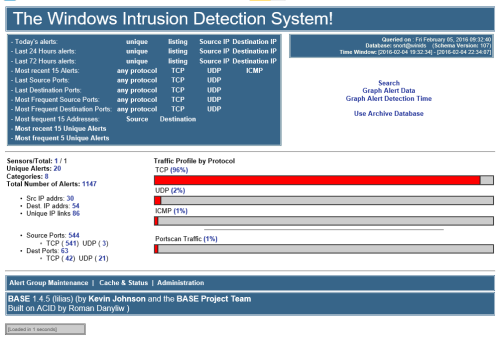
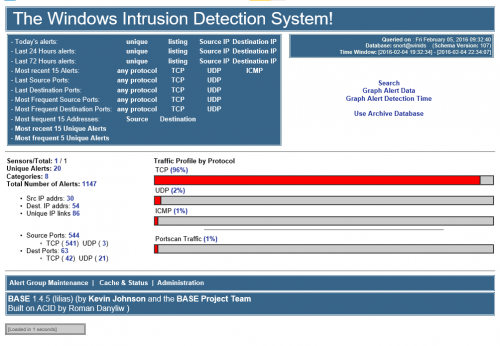
Launch the WinIDS Console on the Master Management Server. Monitor the Sensors/Total telemetry indicator. A successful link displays 2/2 (or greater). Verify that $SensorName is actively reporting logs to the centralized dashboard. =============================================================================== TECHNICAL DOCUMENTATION & SUPPORT: https://winsnort.com ===============================================================================- 8 Downloads
Updated -
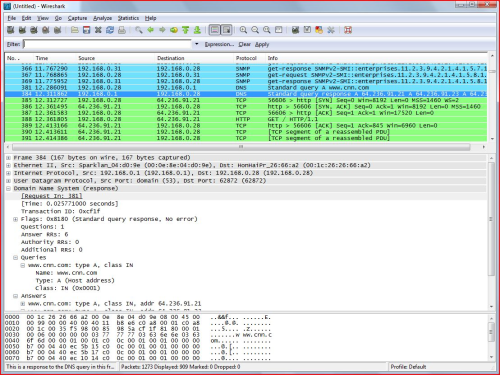
Wireshark is one of the popular free packet sniffing tools for Windows. This tool can give you an ability to see what’s happening on your network at a microscopic level.
- 189 Downloads
Updated -
=============================================================================== WinIDS v4.1 Deployment Framework – Standalone Sensor Install Guide Copyright © 2026 WinSnort.com | Michael Steele =============================================================================== Operational Overview
This package contains a specialized deployment framework for the Windows Intrusion Detection System (WinIDS). It is engineered for high-performance installations on Windows 10/11 and Windows Server (2016–2025) 64-bit.
Phase I: Pre-Deployment Specifications
• Target Environment : Optimized for clean OS installations. • Archive Integrity : Extract all package contents to a dedicated directory. • Archive Security : w1nsn03t.c0m Phase II: Standalone Sensor Deployment
Locate the config.conf file in the local extraction directory on the host.
Open it with a text editor (such as Notepad) and configure the following variables:
$TempDir = "" # Path for temporary installation/download files (e.g., "D:\files") $WinIDSRoot = "" # Primary home directory for WinIDS installation (e.g., "D:\home") $Oinkcode = "" # Your 40-character Snort.org Oinkcode for rule updates $SensorName = "" # Unique name for this host sensor (e.g., "HostName") $EnableAllRules = $true # Set to $false to disable rule testing and high-volume logging $EnableRestorePoint = $true # Set to $false to skip System Restore point creation $SnortUser = "snort" # Master host ALERT database username $SnortPass = "l0gg3r" # Master host ALERT database password $RootUser = "root" # Master host (root) MySQL/PostgreSQL database username $RootPass = "d1ngd0ng" # Master host (root) MySQL/PostgreSQL database password Save all changes to config.conf and close the editor.
Right-click Installer.exe and select Run as Administrator to begin the installation.
Phase III: Parameter Configuration
Security Recommendations
The username and password values shown above are defaults. For production environments, it is strongly advised to update these credentials to enhance network security. If there is any doubt, leave them as-is.
Database Roles
The SnortUser/SnortPass credentials are used by Barnyard2 to authenticate with the ALERT database. These credentials also facilitate the connection between remote nodes and the master host across the LAN or WAN.
The RootUser/RootPass credentials are administrative and used for command-line database management post-installation, as well as for the Database Manager utility.
Documentation
Use caution when modifying default settings. Ensure all changes are recorded for future administrative reference.
Deployment Duration Estimates
Completion times vary based on the selected database engine and host operating system. The following estimates assume standard network throughput and hardware resource availability:
Workstation (standalone or node deployments): ~15 minutes Server host deployments: ~40 minutes Performance is directly influenced by available system resources and network bandwidth.
Recovery and Resiliency Logic
The WinIDS framework is designed with automated resume capability. In the event of a package acquisition failure, manually download the required asset to your defined $TempDir and re-initialize the installer. The framework will automatically detect the local file and resume deployment.
Important: Do not terminate the installer during active system modifications or registry updates to prevent system corruption.
System Restore Operations
In workstation environments, when EnableRestorePoint is active, the installer generates a system restore point prior to setup. This process initializes the required snapshot services, clears existing restore points, and creates a fresh baseline snapshot before cycling the services back to manual. This specific sequence ensures the first-run pre-installation snapshot remains protected from automatic purging.
If a valid first-run snapshot is already present—often the result of a previous removal via the RestorePoint utility—the installer will bypass the creation step to preserve the original baseline for the new installation.
System Recovery Process
The RestorePoint utility relies on the initial first-run snapshot to execute a rollback. If this snapshot is detected, the utility will revert the system to its original pre-installation state. If the snapshot is missing, the process will automatically terminate to prevent system instability.
Without a valid snapshot, a clean rollback cannot be performed. In this scenario, you must manually resolve the conflict, restore from a full system backup, or initiate a fresh installation. Note that while the recovery process leaves $WinIDSRoot and $TempDir untouched, performing a new installation will permanently delete all data within the $WinIDSRoot directory.
Data Integrity
The System Restore feature is intended for configuration recovery and is not a replacement for a comprehensive backup solution. System Restore services are set to manual and toggled as needed. Windows Restore Points are transient and may be purged during routine maintenance cycles if those services are running.
Environmental Constraints & Best Practices
Server Deployments: Windows Server architectures do not natively support System Restore points. This feature is automatically bypassed during server OS deployments.
PulledPork Rule Maintenance
The original PulledPork by Shirkdog is housed within a sophisticated wrapper, accessible via the WinSnort Start Menu. While the utility is designed for out-of-the-box functionality with no manual configuration required, the wrapper offers a highly verbose interface with integrated system checks. Every update attempt is documented in the PulledPork log folder. To maintain system stability, the utility automatically rolls back to the last known-good rule set if an update fails.
The Rule Updater includes a built-in scheduler with configurable intervals ranging from 15 to 60 minutes. It supports automated retention of successful updates and SMTP email notifications. While Silent Mode is available for remote or unmanaged sensors, the updater defaults to a verbose display if launched manually from the desktop while in Silent Mode. If executed in Silent Mode without SMTP, the system continues to capture errors and failures within the local log files.
Phase IV: Post-Deployment Management
Upon successful completion, the WinIDS Management Suite will be accessible via Start Menu > WinSnort. Core utilities include:
• WinIDS Console : Real-time telemetry, event monitoring, and analysis. • Rules Updater : PulledPork-driven rule-set synchronization. • System Restore : System Restore Point (SRP) utility (workstation only). • Database Utility : Database maintenance utility. Although a system reboot is not strictly mandatory, it is recommended to ensure all environment variables are refreshed. Please note that the WinSnort Start Menu group may not appear until a system restart has been completed.
=============================================================================== TECHNICAL DOCUMENTATION & SUPPORT: https://winsnort.com ===============================================================================- 1 Downloads
Updated -
=============================================================================== WinIDS v4.1 Deployment Framework – Standalone Sensor Install Guide Copyright © 2026 WinSnort.com | Michael Steele =============================================================================== Operational Overview
This package contains a specialized deployment framework for the Windows Intrusion Detection System (WinIDS). It is engineered for high-performance installations on Windows 10/11 and Windows Server (2016–2025) 64-bit.
Phase I: Pre-Deployment Specifications
• Target Environment : Optimized for clean OS installations. • Archive Integrity : Extract all package contents to a dedicated directory. • Archive Security : w1nsn03t.c0m Phase II: Standalone Sensor Deployment
Locate the config.conf file in the local extraction directory on the host.
Open it with a text editor (such as Notepad) and configure the following variables:
$TempDir = "" # Path for temporary installation/download files (e.g., "D:\files") $WinIDSRoot = "" # Primary home directory for WinIDS installation (e.g., "D:\home") $Oinkcode = "" # Your 40-character Snort.org Oinkcode for rule updates $SensorName = "" # Unique name for this host sensor (e.g., "HostName") $EnableAllRules = $true # Set to $false to disable rule testing and high-volume logging $EnableRestorePoint = $true # Set to $false to skip System Restore point creation $SnortUser = "snort" # Master host ALERT database username $SnortPass = "l0gg3r" # Master host ALERT database password $RootUser = "root" # Master host (root) MySQL/PostgreSQL database username $RootPass = "d1ngd0ng" # Master host (root) MySQL/PostgreSQL database password Save all changes to config.conf and close the editor.
Right-click Installer.exe and select Run as Administrator to begin the installation.
Phase III: Parameter Configuration
Security Recommendations
The username and password values shown above are defaults. For production environments, it is strongly advised to update these credentials to enhance network security. If there is any doubt, leave them as-is.
Database Roles
The SnortUser/SnortPass credentials are used by Barnyard2 to authenticate with the ALERT database. These credentials also facilitate the connection between remote nodes and the master host across the LAN or WAN.
The RootUser/RootPass credentials are administrative and used for command-line database management post-installation, as well as for the Database Manager utility.
Documentation
Use caution when modifying default settings. Ensure all changes are recorded for future administrative reference.
Deployment Duration Estimates
Completion times vary based on the selected database engine and host operating system. The following estimates assume standard network throughput and hardware resource availability:
Workstation (standalone or node deployments): ~15 minutes Server host deployments: ~40 minutes Performance is directly influenced by available system resources and network bandwidth.
Recovery and Resiliency Logic
The WinIDS framework is designed with automated resume capability. In the event of a package acquisition failure, manually download the required asset to your defined $TempDir and re-initialize the installer. The framework will automatically detect the local file and resume deployment.
Important: Do not terminate the installer during active system modifications or registry updates to prevent system corruption.
System Restore Operations
In workstation environments, when EnableRestorePoint is active, the installer generates a system restore point prior to setup. This process initializes the required snapshot services, clears existing restore points, and creates a fresh baseline snapshot before cycling the services back to manual. This specific sequence ensures the first-run pre-installation snapshot remains protected from automatic purging.
If a valid first-run snapshot is already present—often the result of a previous removal via the RestorePoint utility—the installer will bypass the creation step to preserve the original baseline for the new installation.
System Recovery Process
The RestorePoint utility relies on the initial first-run snapshot to execute a rollback. If this snapshot is detected, the utility will revert the system to its original pre-installation state. If the snapshot is missing, the process will automatically terminate to prevent system instability.
Without a valid snapshot, a clean rollback cannot be performed. In this scenario, you must manually resolve the conflict, restore from a full system backup, or initiate a fresh installation. Note that while the recovery process leaves $WinIDSRoot and $TempDir untouched, performing a new installation will permanently delete all data within the $WinIDSRoot directory.
Data Integrity
The System Restore feature is intended for configuration recovery and is not a replacement for a comprehensive backup solution. System Restore services are set to manual and toggled as needed. Windows Restore Points are transient and may be purged during routine maintenance cycles if those services are running.
Environmental Constraints & Best Practices
Server Deployments: Windows Server architectures do not natively support System Restore points. This feature is automatically bypassed during server OS deployments.
PulledPork Rule Maintenance
The original PulledPork by Shirkdog is housed within a sophisticated wrapper, accessible via the WinSnort Start Menu. While the utility is designed for out-of-the-box functionality with no manual configuration required, the wrapper offers a highly verbose interface with integrated system checks. Every update attempt is documented in the PulledPork log folder. To maintain system stability, the utility automatically rolls back to the last known-good rule set if an update fails.
The Rule Updater includes a built-in scheduler with configurable intervals ranging from 15 to 60 minutes. It supports automated retention of successful updates and SMTP email notifications. While Silent Mode is available for remote or unmanaged sensors, the updater defaults to a verbose display if launched manually from the desktop while in Silent Mode. If executed in Silent Mode without SMTP, the system continues to capture errors and failures within the local log files.
Phase IV: Post-Deployment Management
Upon successful completion, the WinIDS Management Suite will be accessible via Start Menu > WinSnort. Core utilities include:
• WinIDS Console : Real-time telemetry, event monitoring, and analysis. • Rules Updater : PulledPork-driven rule-set synchronization. • System Restore : System Restore Point (SRP) utility (workstation only). • Database Utility : Database maintenance utility. Although a system reboot is not strictly mandatory, it is recommended to ensure all environment variables are refreshed. Please note that the WinSnort Start Menu group may not appear until a system restart has been completed.
=============================================================================== TECHNICAL DOCUMENTATION & SUPPORT: https://winsnort.com ===============================================================================- 0 Downloads
Updated -
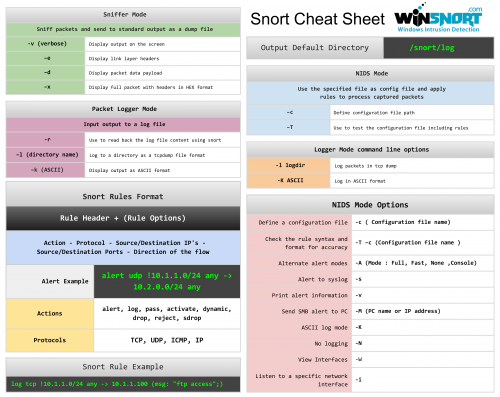
The Snort Cheat Sheet covers the following topics:
Sniffer mode, Packet logger mode, and NIDS mode operation Snort rules format Logger mode command line options NIDS mode options Alert and rule examples- 11 Downloads
Updated -
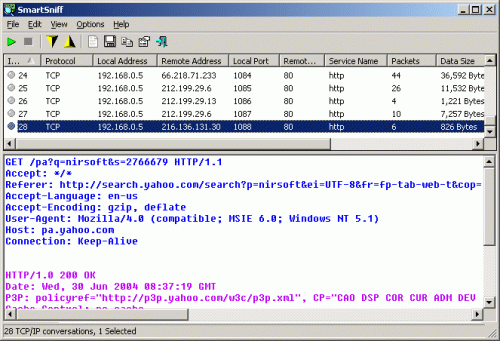
SmartSniff is a free packet sniffing tool that allows you to capture TCP/IP packets passing through your network adapter and view the captured data as a sequence of conversations between clients and servers. With the help of this network monitoring utility, you can view TCP/IP conversations in ASCII mode or as a hex dump.
- 217 Downloads
Updated -
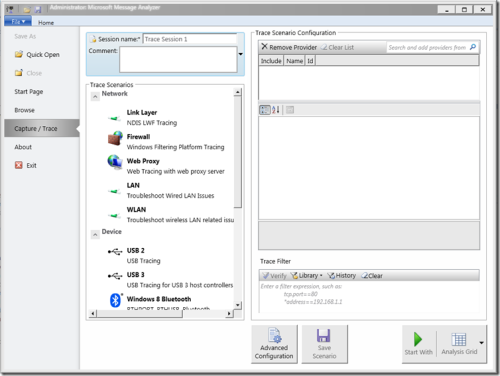
Microsoft Message Analyzer is a tool for capturing, displaying, and analyzing protocol messaging traffic. It is the successor to NetMon 3.x and a key component of the Protocol Engineering Framework (PEF), created by Microsoft to improve protocol design, development, documentation, testing, and support. With Message Analyzer, you can capture live data or retrieve archived message collections from saved files such as traces and logs. Message Analyzer also allows you to display data in a default tree grid view as well as selectable graphical views that employ grids, charts, and timeline visualizer components, providing high-level data summaries and other statistics.
Update: Microsoft Message Analyzer (MMA) was retired as of November 25, 2019. There is currently no Microsoft replacement for Microsoft Message Analyzer in development.
Note: I would say it is a must-have tool for any network administrator, given how much you can accomplish with it. A dedicated TechNet blog for Microsoft Message Analyzer is available.- 161 Downloads
Updated -
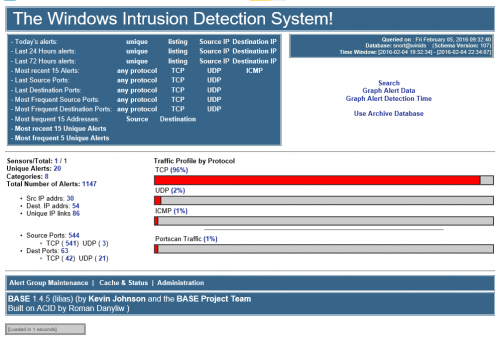
This is the latest Windows Intrusion Detection System Core Software Support Pack and is required for all Windows Intrusion Detection Systems (WinIDS) installs.
The Windows Intrusion Detection System (WinIDS) Core Software Support Pack is password-protected.
Wrapper Password: w1nsn03t.c0m
Note: It is highly recommended that the SHA-1 value listed below matches the SHA-1 value of the downloaded Windows Intrusion Detection System (WinIDS) Core Software Support Pack.
SHA-1 Hash value: CF2FBF9655CB0B91EADB0682B3303C69EE431DF7
What's New in Version 5.16.2026
Updates to this Core Software Pack:
PostgreSQL has been updated from 18.3-1 to 18.4-1 MySQL has been updated from 8.0.45 to 8.0.46 PHP has been updated from 8.4.55 to 8.5.6 Apache2 has been updated from 2.4.66-260107 to 2.4.67-260504 Npcap has been updated from 1.87 to 1.88 What's New in Version 4.29.2026
Updates to this Core Software Pack:
MySQL has been updated from 8.0.44 to 8.0.45 What's New in Version 3.1.2026
Updates to this Core Software Pack:
PostgreSQL has been updated from 18.2-1 to 18.3-1 What's New in Version 2.12.2026
Updates to this Core Software Pack:
PostgreSQL has been updated from 18.1-1 to 18.2-1 What's New in Version 1.27.2026
Updates to this Core Software Pack:
MySQL has been updated from 8.0.44 to 8.0.45 What's New in Version 1.10.2026
Updates to this Core Software Pack:
Apache2 has been updated from 2.4.65-250724 (vs17) to 2.4.66-260107 (vs18) FastCGI ASF module from 2.3.10 (vs17) to 2.3.10 (vs18) Npcap has been updated from 1.85 to 1.86 Visual C++ x86/x64 updated from 2015-2022 to 2017-2026 What's New in Version 12.24.2025
Updates to this Core Software Pack:
Updated all the scripts PHP has been updated from 8.4.50 to 8.5.1 What's New in Version 11.21.2025
Updates to this Core Software Pack:
PostgreSQL has been updated from 18.0 to 18.1 PHP has been updated from 8.4.13 to 8.5.0 Npcap has been updated from 1.83 to 1.84 What's New in Version 10.22.2025
Updates to this Core Software Pack:
MySQL has been updated from 8.0.43 to 8.0.44 PHP has been updated from 8.4.13 to 8.4.14 What's New in Version 10.2.2025
Updates to this Core Software Pack:
PostgreSQL has been updated from 17.6 to 18.0 PHP has been updated from 8.4.11 to 8.4.13 Strawberry Perl has been updated from 5.41.2.1 to 5.42.0.1 What's New in Version 7.30.2025
Updates to this Core Software Pack:
MySQL has been updated from 8.0.42 to 8.0.43 PHP has been updated from 8.4.10 to 8.4.11 Apache2 has been updated from 2.4.65-250207 to 2.4.65-250724 Barnyard2 recompiled for database updates What's New in Version 4.23.2025
Updates to this Core Software Pack:
MySQL has been updated from 8.0.41 to 8.0.42 PHP has been updated from 8.4.3 to 8.4.6 Barnyard2 recompiled for database updates What's New in Version 2.22.2025
Updates to this Core Software Pack:
PostgreSQL has been updated from 17.3 to 17.4 Npcap has been updated from 1.80 to 1.81 Barnyard2 recompiled for database updates What's New in Version 2.14.2025
Updates to this Core Software Pack:
PostgreSQL has been updated from 17.2 to 17.3 PHP has been updated from 8.4.3 to 8.4.4 Barnyard2 recompiled for database updates What's New in Version 2.10.2025
Updates to this Core Software Pack:
Added a PowerShell script to update the rules from the desktop or via silent scheduling with optional email reporting What's New in Version 1.24.2025
Updates to this Core Software Pack:
Updated Modder from Visual Basic to PowerShell Updated VS C++ to the latest 2015-2022 PostgreSQL has been updated from 16.3 to 17.2 MySQL has been updated from 8.0.40 to 8.0.41 PHP has been updated from 8.3.7 (vs16) to 8.4.3 (vs17) Npcap has been updated from 1.79 to 1.80 Strawberry Perl has been updated from 5.38.1.1 to 5.40.0.1 Apache has been updated from 2.4.55 (vs17) to 2.4.62 (vs17) What's New in Version 4.8.2024
Updates to this Core Software Pack:
VC_redist_2015-2022.x64 has been updated from 14.38.33133 to 14.38.33135 (required for Apache2) What's New in Version 2.28.2024
Updates to this Core Software Pack:
PostgreSQL has been updated from 16.1 to 16.2 PHP has been updated from 8.2.10 to 8.3.3 Strawberry Perl has been updated from 5.38.1.1 to 5.38.2.2 What's New in Version 1.22.2024
Updates to this Core Software Pack:
MySQL has been updated from 8.0.35 to 8.0.36 Npcap has been updated from 1.78 to 1.79 What's New in Version 11.18.2023
Updates to this Core Software Pack:
PostgreSQL has been updated from 15.5 to 16.1 ADOdb has been updated from 5.22.6 to 5.22.7 Npcap has been updated from 1.77 to 1.78 What's New in Version 9.5.2023
Updates to this Core Software Pack:
PostgreSQL has been updated from 15.3 to 15.4 PHP has been updated from 8.2.8 to 8.2.10 What's New in Version 7.22.2023
Updates to this Core Software Pack:
MySQL has been updated from 8.0.33 to 8.0.34 Npcap has been updated from 1.75 to 1.76 What's New in Version 5.16.2023
Updates to this Core Software Pack:
PostgreSQL has been updated from 15.2 to 15.3 What's New in Version 4.30.2023
Updates to this Core Software Pack:
MySQL has been updated from 8.0.31 to 8.0.33 What's New in Version 2.15.2023
Updates to this Core Software Pack:
PostgreSQL has been updated from 10.23 to 15.2 What's New in Version 1.22.2023
Updates to this Core Software Pack:
MySQL has been updated from 8.0.30 to 8.0.31 Apache has been updated from 2.4.54 (vs16) to 2.4.55 (vs17) What's New in Version 11.13.2022
Updates to this Core Software Pack:
PostgreSQL has been updated from 10.22 to 10.23 What's New in Version 8.18.2022
Updates to this Core Software Pack:
MySQL has been updated from 8.0.29 to 8.0.30 PostgreSQL has been updated from 10.21 to 10.22 What's New in Version 6.22.2022
Updates to this Core Software Pack:
MySQL has been updated from 8.0.28 to 8.0.29 PostgreSQL has been updated from 10.20 to 10.21 Kindest Regards,
Winsnort.com Management- 4,739 Downloads
-
This is the latest Windows Intrusion Detection Systems (WinIDS) software pack for all WinIDS companion add-ons.
Only use the software supplied in the Windows Intrusion Detection Systems (WinIDS) Companion Software Pack. The versions of support files included may be old or outdated; however, they are the last versions that have been fully tested with all WinIDS guided installations.
The Windows Intrusion Detection System (WinIDS) Companion Software Development Pack is password-protected.
Wrapper Password: w1nsn03t.c0m
After downloading the Windows Intrusion Detection System (WinIDS) Core Software Support Pack and before attempting to install it, you should verify that it is intact and has not been tampered with. Use the SHA-1 checksum below to confirm integrity.
SHA-1 Hash value: 114F53B88F69BC71F217D22288554892E30675D5
What's New in Version 06.20.2022
Updates to companion software:
Added Visual Syslog 1.6.4.19 Added Event Watch 2.3.3 Kindest Regards,
Winsnort.com Management- 1,236 Downloads
-
This is the latest Windows Intrusion Detection Systems (WinIDS) Barnyard2 Software Development Pack, intended for compiling Barnyard2 on Windows.
The only reason to compile Barnyard2 for an existing Windows Intrusion Detection System (WinIDS) is when the MySQL or PostgreSQL database is being updated.
Note: It is highly recommended that the version of the database compiled into Barnyard2 matches the version running on the live Windows Intrusion Detection System (WinIDS).
The Windows Intrusion Detection System (WinIDS) Barnyard2 Software Development Pack is password-protected.
Wrapper Password: w1nsn03t.c0m
Note: It is highly recommended that the SHA-1 value listed below matches the SHA-1 value of the downloaded Windows Intrusion Detection System (WinIDS) Barnyard2 Software Development Pack.
SHA-1 Hash value: 66D6E944DAB0DFB3EF18715BB357E39A3BA8E1FF
What's New in Version 4.29.2026
Updating the compile of Barnyard2 on Windows:
MySQL has been updated from 8.0.44 to 8.0.46 The compiling script has major updates What's New in Version 2.15.2026
Updating the compile of Barnyard2 on Windows:
PostgreSQL has been updated from 18.1 to 18.2 The compiling script has been converted to PowerShell Added an option to keep Cygwin installed What's New in Version 1.16.2026
Updating the compile of Barnyard2 on Windows:
Further script revisions What's New in Version 12.24.2025
Updating the compile of Barnyard2 on Windows:
Updated the scripts What's New in Version 11.21.2025
Updating the compile of Barnyard2 on Windows:
PostgreSQL has been updated from 18.0 to 18.1 What's New in Version 10.22.2025
Updating the compile of Barnyard2 on Windows:
MySQL has been updated from 8.0.43 to 8.0.44 What's New in Version 10.2.2025
Updating the compile of Barnyard2 on Windows:
PostgreSQL has been updated from 17.6 to 18.0 What's New in Version 8.18.2025
Updating the compile of Barnyard2 on Windows:
PostgreSQL has been updated from 17.5 to 17.6 What's New in Version 7.30.2025
Updating the compile of Barnyard2 on Windows:
MySQL has been updated from 8.0.42 to 8.0.43 What's New in Version 5.14.2025
Updating the compile of Barnyard2 on Windows:
PostgreSQL has been updated from 17.4 to 17.5 What's New in Version 4.23.2025
Updating the compile of Barnyard2 on Windows:
MySQL has been updated from 8.0.41 to 8.0.42 What's New in Version 2.23.2025
Updating the compile of Barnyard2 on Windows:
PostgreSQL has been updated from 17.3 to 17.4 What's New in Version 2.19.2025
Updating the compile of Barnyard2 on Windows:
MySQL has been updated from 8.0.40 to 8.0.41 PostgreSQL has been updated from 17.2 to 17.3 What's New in Version 2.5.2025
Updating the compile of Barnyard2 on Windows:
Updated the scripts What's New in Version 1.24.2025
Updating the compile of Barnyard2 on Windows:
MySQL has been updated from 8.0.37 to 8.0.40 PostgreSQL has been updated from 16.3 to 17.2 What's New in Version 5.14.2024
Updating the compile of Barnyard2 on Windows:
MySQL has been updated from 8.0.36 to 8.0.37 PostgreSQL has been updated from 16.2 to 16.3 What's New in Version 1.22.2024
Updating the compile of Barnyard2 on Windows:
MySQL has been updated from 8.0.35 to 8.0.36 What's New in Version 11.18.2023
Updating the compile of Barnyard2 on Windows:
PostgreSQL has been updated from 15.5 to 16.1 What's New in Version 11.7.2023
Updating the compile of Barnyard2 on Windows:
Updated the scripts to include step‑by‑step explanations What's New in Version 10.3.2023
Updating the compile of Barnyard2 on Windows:
PostgreSQL has been updated from 15.4 to 15.5 What's New in Version 9.5.2023
Updating the compile of Barnyard2 on Windows:
PostgreSQL has been updated from 15.3 to 15.4 What's New in Version 7.22.2023
Updating the compile of Barnyard2 on Windows:
MySQL has been updated from 8.0.33 to 8.0.34 What's New in Version 5.16.2023
Updating the compile of Barnyard2 on Windows:
PostgreSQL has been updated from 15.2 to 15.3 What's New in Version 2.15.2023
Updating the compile of Barnyard2 on Windows:
PostgreSQL has been updated from 10.23 to 15.2 What's New in Version 1.20.2023
Updating the compile of Barnyard2 on Windows:
MySQL has been updated from 8.0.30 to 8.0.31 What's New in Version 11.13.2022
Updating the compile of Barnyard2 on Windows:
MySQL has been updated from 8.0.30 to 8.0.31 PostgreSQL has been updated from 10.22 to 10.23 What's New in Version 8.18.2022
Updating the compile of Barnyard2 on Windows:
The automated system has been updated with menu options MySQL has been updated from 8.0.29 to 8.0.30 PostgreSQL has been updated from 10.21 to 10.22 What's New in Version 6.22.2022
Updating the compile of Barnyard2 on Windows:
The automated system has been updated with menu options MySQL has been updated from 8.0.28 to 8.0.29 PostgreSQL has been updated from 10.20 to 10.21 Kindest Regards,
Winsnort.com Management
```
- 566 Downloads
-
=============================================================================== WinIDS v4.1 Deployment Framework – Standalone Sensor Install Guide Copyright © 2026 WinSnort.com | Michael Steele =============================================================================== Operational Overview
This package contains a specialized deployment framework for the Windows Intrusion Detection System (WinIDS). It is engineered for high-performance installations on Windows 10/11 and Windows Server (2016–2025) 64-bit.
Phase I: Pre-Deployment Specifications
• Target Environment : Optimized for clean OS installations. • Archive Integrity : Extract all package contents to a dedicated directory. • Archive Security : w1nsn03t.c0m Phase II: Standalone Sensor Deployment
Locate the config.conf file in the local extraction directory on the host.
Open it with a text editor (such as Notepad) and configure the following variables:
$TempDir = "" # Path for temporary installation/download files (e.g., "D:\files") $WinIDSRoot = "" # Primary home directory for WinIDS installation (e.g., "D:\home") $Oinkcode = "" # Your 40-character Snort.org Oinkcode for rule updates $SensorName = "" # Unique name for this host sensor (e.g., "HostName") $EnableAllRules = $true # Set to $false to disable rule testing and high-volume logging $EnableRestorePoint = $true # Set to $false to skip System Restore point creation $SnortUser = "snort" # Master host ALERT database username $SnortPass = "l0gg3r" # Master host ALERT database password $RootUser = "root" # Master host (root) MySQL/PostgreSQL database username $RootPass = "d1ngd0ng" # Master host (root) MySQL/PostgreSQL database password Save all changes to config.conf and close the editor.
Right-click Installer.exe and select Run as Administrator to begin the installation.
Phase III: Parameter Configuration
Security Recommendations
The username and password values shown above are defaults. For production environments, it is strongly advised to update these credentials to enhance network security. If there is any doubt, leave them as-is.
Database Roles
The SnortUser/SnortPass credentials are used by Barnyard2 to authenticate with the ALERT database. These credentials also facilitate the connection between remote nodes and the master host across the LAN or WAN.
The RootUser/RootPass credentials are administrative and used for command-line database management post-installation, as well as for the Database Manager utility.
Documentation
Use caution when modifying default settings. Ensure all changes are recorded for future administrative reference.
Deployment Duration Estimates
Completion times vary based on the selected database engine and host operating system. The following estimates assume standard network throughput and hardware resource availability:
Workstation (standalone or node deployments): ~15 minutes Server host deployments: ~40 minutes Performance is directly influenced by available system resources and network bandwidth.
Recovery and Resiliency Logic
The WinIDS framework is designed with automated resume capability. In the event of a package acquisition failure, manually download the required asset to your defined $TempDir and re-initialize the installer. The framework will automatically detect the local file and resume deployment.
Important: Do not terminate the installer during active system modifications or registry updates to prevent system corruption.
System Restore Operations
In workstation environments, when EnableRestorePoint is active, the installer generates a system restore point prior to setup. This process initializes the required snapshot services, clears existing restore points, and creates a fresh baseline snapshot before cycling the services back to manual. This specific sequence ensures the first-run pre-installation snapshot remains protected from automatic purging.
If a valid first-run snapshot is already present—often the result of a previous removal via the RestorePoint utility—the installer will bypass the creation step to preserve the original baseline for the new installation.
System Recovery Process
The RestorePoint utility relies on the initial first-run snapshot to execute a rollback. If this snapshot is detected, the utility will revert the system to its original pre-installation state. If the snapshot is missing, the process will automatically terminate to prevent system instability.
Without a valid snapshot, a clean rollback cannot be performed. In this scenario, you must manually resolve the conflict, restore from a full system backup, or initiate a fresh installation. Note that while the recovery process leaves $WinIDSRoot and $TempDir untouched, performing a new installation will permanently delete all data within the $WinIDSRoot directory.
Data Integrity
The System Restore feature is intended for configuration recovery and is not a replacement for a comprehensive backup solution. System Restore services are set to manual and toggled as needed. Windows Restore Points are transient and may be purged during routine maintenance cycles if those services are running.
Environmental Constraints & Best Practices
Server Deployments: Windows Server architectures do not natively support System Restore points. This feature is automatically bypassed during server OS deployments.
PulledPork Rule Maintenance
The original PulledPork by Shirkdog is housed within a sophisticated wrapper, accessible via the WinSnort Start Menu. While the utility is designed for out-of-the-box functionality with no manual configuration required, the wrapper offers a highly verbose interface with integrated system checks. Every update attempt is documented in the PulledPork log folder. To maintain system stability, the utility automatically rolls back to the last known-good rule set if an update fails.
The Rule Updater includes a built-in scheduler with configurable intervals ranging from 15 to 60 minutes. It supports automated retention of successful updates and SMTP email notifications. While Silent Mode is available for remote or unmanaged sensors, the updater defaults to a verbose display if launched manually from the desktop while in Silent Mode. If executed in Silent Mode without SMTP, the system continues to capture errors and failures within the local log files.
Phase IV: Post-Deployment Management
Upon successful completion, the WinIDS Management Suite will be accessible via Start Menu > WinSnort. Core utilities include:
• WinIDS Console : Real-time telemetry, event monitoring, and analysis. • Rules Updater : PulledPork-driven rule-set synchronization. • System Restore : System Restore Point (SRP) utility (workstation only). • Database Utility : Database maintenance utility. Although a system reboot is not strictly mandatory, it is recommended to ensure all environment variables are refreshed. Please note that the WinSnort Start Menu group may not appear until a system restart has been completed.
=============================================================================== TECHNICAL DOCUMENTATION & SUPPORT: https://winsnort.com ===============================================================================- 4 Downloads
Updated -
=============================================================================== WinIDS v4.1 Deployment Framework – Standalone Sensor Install Guide Copyright © 2026 WinSnort.com | Michael Steele =============================================================================== Operational Overview
This package contains a specialized deployment framework for the Windows Intrusion Detection System (WinIDS). It is engineered for high-performance installations on Windows 10/11 and Windows Server (2016–2025) 64-bit.
Phase I: Pre-Deployment Specifications
• Target Environment : Optimized for clean OS installations. • Archive Integrity : Extract all package contents to a dedicated directory. • Archive Security : w1nsn03t.c0m Phase II: Standalone Sensor Deployment
Locate the config.conf file in the local extraction directory on the host.
Open it with a text editor (such as Notepad) and configure the following variables:
$TempDir = "" # Path for temporary installation/download files (e.g., "D:\files") $WinIDSRoot = "" # Primary home directory for WinIDS installation (e.g., "D:\home") $Oinkcode = "" # Your 40-character Snort.org Oinkcode for rule updates $SensorName = "" # Unique name for this host sensor (e.g., "HostName") $EnableAllRules = $true # Set to $false to disable rule testing and high-volume logging $EnableRestorePoint = $true # Set to $false to skip System Restore point creation $SnortUser = "snort" # Master host ALERT database username $SnortPass = "l0gg3r" # Master host ALERT database password $RootUser = "root" # Master host (root) MySQL/PostgreSQL database username $RootPass = "d1ngd0ng" # Master host (root) MySQL/PostgreSQL database password Save all changes to config.conf and close the editor.
Right-click Installer.exe and select Run as Administrator to begin the installation.
Phase III: Parameter Configuration
Security Recommendations
The username and password values shown above are defaults. For production environments, it is strongly advised to update these credentials to enhance network security. If there is any doubt, leave them as-is.
Database Roles
The SnortUser/SnortPass credentials are used by Barnyard2 to authenticate with the ALERT database. These credentials also facilitate the connection between remote nodes and the master host across the LAN or WAN.
The RootUser/RootPass credentials are administrative and used for command-line database management post-installation, as well as for the Database Manager utility.
Documentation
Use caution when modifying default settings. Ensure all changes are recorded for future administrative reference.
Deployment Duration Estimates
Completion times vary based on the selected database engine and host operating system. The following estimates assume standard network throughput and hardware resource availability:
Workstation (standalone or node deployments): ~15 minutes Server host deployments: ~40 minutes Performance is directly influenced by available system resources and network bandwidth.
Recovery and Resiliency Logic
The WinIDS framework is designed with automated resume capability. In the event of a package acquisition failure, manually download the required asset to your defined $TempDir and re-initialize the installer. The framework will automatically detect the local file and resume deployment.
Important: Do not terminate the installer during active system modifications or registry updates to prevent system corruption.
System Restore Operations
In workstation environments, when EnableRestorePoint is active, the installer generates a system restore point prior to setup. This process initializes the required snapshot services, clears existing restore points, and creates a fresh baseline snapshot before cycling the services back to manual. This specific sequence ensures the first-run pre-installation snapshot remains protected from automatic purging.
If a valid first-run snapshot is already present—often the result of a previous removal via the RestorePoint utility—the installer will bypass the creation step to preserve the original baseline for the new installation.
System Recovery Process
The RestorePoint utility relies on the initial first-run snapshot to execute a rollback. If this snapshot is detected, the utility will revert the system to its original pre-installation state. If the snapshot is missing, the process will automatically terminate to prevent system instability.
Without a valid snapshot, a clean rollback cannot be performed. In this scenario, you must manually resolve the conflict, restore from a full system backup, or initiate a fresh installation. Note that while the recovery process leaves $WinIDSRoot and $TempDir untouched, performing a new installation will permanently delete all data within the $WinIDSRoot directory.
Data Integrity
The System Restore feature is intended for configuration recovery and is not a replacement for a comprehensive backup solution. System Restore services are set to manual and toggled as needed. Windows Restore Points are transient and may be purged during routine maintenance cycles if those services are running.
Environmental Constraints & Best Practices
Server Deployments: Windows Server architectures do not natively support System Restore points. This feature is automatically bypassed during server OS deployments.
PulledPork Rule Maintenance
The original PulledPork by Shirkdog is housed within a sophisticated wrapper, accessible via the WinSnort Start Menu. While the utility is designed for out-of-the-box functionality with no manual configuration required, the wrapper offers a highly verbose interface with integrated system checks. Every update attempt is documented in the PulledPork log folder. To maintain system stability, the utility automatically rolls back to the last known-good rule set if an update fails.
The Rule Updater includes a built-in scheduler with configurable intervals ranging from 15 to 60 minutes. It supports automated retention of successful updates and SMTP email notifications. While Silent Mode is available for remote or unmanaged sensors, the updater defaults to a verbose display if launched manually from the desktop while in Silent Mode. If executed in Silent Mode without SMTP, the system continues to capture errors and failures within the local log files.
Phase IV: Post-Deployment Management
Upon successful completion, the WinIDS Management Suite will be accessible via Start Menu > WinSnort. Core utilities include:
• WinIDS Console : Real-time telemetry, event monitoring, and analysis. • Rules Updater : PulledPork-driven rule-set synchronization. • System Restore : System Restore Point (SRP) utility (workstation only). • Database Utility : Database maintenance utility. Although a system reboot is not strictly mandatory, it is recommended to ensure all environment variables are refreshed. Please note that the WinSnort Start Menu group may not appear until a system restart has been completed.
=============================================================================== TECHNICAL DOCUMENTATION & SUPPORT: https://winsnort.com ===============================================================================- 2 Downloads
Updated