


Morpheus
Administrators
-
Joined
-
Last visited
Everything posted by Morpheus
-
Go back in and verify the PHP setting in IIS. For some reason the setting sometime does not save and the settings need to be re-applied. No need to reinstall because the same problem could come back. I checked your setting and the php.ini file is good but the IIS files are for version 10 and I don't have that set of configs to match yours with. I would need to install IIS 10 to get it. What OS version are you running?
-
Go back to the section below and do over. Configuring IIS for PHP, and the Windows Intrusion Detection Systems security console If that fails then zip up all the files in the Windows\System32\inetsrv\config folder and attach. Also attach the php.ini file
-
-
No you don't need to do anything. What you are seeing is correct. I made an error in the tutorial and have since corrected it. Check out the tutorial, and it should match your install.
-
All fixed, thanks...
-
Morpheus replied to fahmiff's topic in Discussing Manual Installation for Apache2 with MySQL LoggingWhat is the process you used and I'll check it on another build. Did you just add the below to your local.rules file? alert ( msg: "ARPSPOOF_ARP_CACHE_OVERWRITE_ATTACK"; sid: 4; gid: 112; rev: 1; metadata: rule-type preproc ; classtype:bad-unknown; ) Did you use something to generate the alert?
-
Morpheus replied to fahmiff's topic in Discussing Manual Installation for Apache2 with MySQL LoggingTry here
-
Morpheus replied to fahmiff's topic in Discussing Manual Installation for Apache2 with MySQL LoggingDo as the topic instructs to remove it.
-
Morpheus replied to fahmiff's topic in Discussing Manual Installation for Apache2 with MySQL LoggingTry this link
-
Morpheus posted a tutorial in Installing a Windows Intrusion Detection System (WinIDS) Companion add-onLogging Events to a Remote Syslog Server Windows 10 / 11 / 2016 SE / 2019 SE / 2022 SE / 2025 SE Last Date Revised: May 12, 2026 Written by: Michael E. Steele Get Community Support! ➜ Introduction This tutorial provides the basic instructions on how to log events from a Windows Intrusion Detection System (WinIDS) to a remote Windows or UNIX Syslog Server. Copyright Notice This document is Copyright © 2003-2026 Michael Steele. All rights reserved. Permission to distribute this document is hereby granted providing that distribution is electronic, no money is involved, and this copyright notice is maintained. Other requests for distribution will be considered. Use the information in this document at your own risk. Michael Steele disavows any potential liability of this document. Use of the concepts, examples, and/or other content of this document is entirely at your own risk. This guide is written in the hope that it will be useful, but without any warranty; without even the implied warranty of merchantability or fitness for a particular purpose. All copyrights are owned by their owners, unless specifically noted otherwise. Third-party trademarks or brand names are the property of their owners. Use of a term in this document should not be regarded as affecting the validity of any trademark or service mark. Naming of particular products or brands should not be seen as endorsements. Support Questions and Help All support questions related to this specific tutorial MUST be directed to the specific forum in which this Windows Intrusion Detection System (WinIDS) tutorial resides! By request, a premium fee service is available for one-on-one support. If you have not acquired this tutorial directly from the winsnort.com website, then you most likely do not have the latest revision of this tutorial! How to use this guide This installation is based on the installer being logged on with 'Administrator' privileges for the entire installation. The Windows Intrusion Detection System (WinIDS) will fail if the default installation path is not implemented correctly! The default installation path noted above is hard-coded into this tutorial and is also hard-coded into some of the install scripts. Installers will need to make the appropriate changes in both places if the default installation path is anything other than 'd:\winids', or if the support files are located anywhere other than the 'd:\temp' folder. The Windows Intrusion Detection System (WinIDS) will fail if the default installation path is not implemented correctly! Requires an existing Windows Intrusion Detection System (WinIDS) using one of the tutorials, either a standalone Windows Intrusion Detection System (WinIDS) or a remote Windows Intrusion Detection System (WinIDS). It is important when asked to 'Open a CMD window with Administrator privileges' that it is done, or the install will fail. It is also important when asked to 'Close a CMD window' that it is done, or the install will fail. Note: The user installing this tutorial MUST be a member of the Administrators group. Note: If the User Account Control dialog box appears at ANY time during this install, ALWAYS left-click 'Yes' to continue, or the install will fail. Instructions on starting a command prompt as an Administrator In the Windows Search box, type cmd, and then press CTRL+SHIFT+ENTER. Prepping for the Windows Intrusion Detection System (WinIDS) Tutorial Assumptions being made prior to starting this tutorial An existing Windows Intrusion Detection System (WinIDS) has been installed. A Windows or UNIX Syslog Server has been installed on the remote PC. The IP address of the remote PC where the Syslog Server has been installed is known. The Syslog listening port is known on the remote Syslog Server (suggest 514). The status of the listening port for the remote Syslog Server MUST be open for connections. Testing for an open listening port on the remote Syslog Server From the Windows Intrusion Detection System (WinIDS), go to the 'You Get Signal' website. Replace the local IP address with the IP Address of the remote Syslog Server in the 'Remote Address' dialog box. In the 'Port Number' dialog box, type the listening port number of the remote Syslog Server, and left-click 'Check'. *** If the above response is CLOSED, then do not proceed until the status is OPEN. *** Configuring the Windows Intrusion Detection System (WinIDS) for Remote Syslog logging Configuring Snort to include Syslog logging Open a CMD window with Administrator privileges and type 'notepad2 d:\winids\snort\etc\snort.conf' (without the outside quotes), and tap the 'Enter' key. Use Find in Notepad2 to locate and change the variables below. Original Line(s): # output alert_syslog: LOG_AUTH LOG_ALERT Change to: output alert_syslog: host=SYSLOG_SVR_IP_ADDR:PORT, LOG_AUTH LOG_ALERT Make SURE the SYSLOG_SVR_IP_ADDR above reflects the IP Address of the remote Syslog server, and the PORT above reflects the listening port of the remote Syslog Server. Now save the file and exit Notepad2. Testing the Snort configuration file At the CMD prompt, type 'd:\winids\snort\bin\snort -W' (without the outside quotes), and tap the 'Enter' key. The following is a partial example of what might be listed as valid Network Interface Cards. Index Physical Address IP Address ----- ---------------- ---------- 1 00:0C:29:25:B4:96 0000:0000:fe80:0000:0000:0000:ad63:31cf In the above list, the 'Index' number is important and will need to be remembered for later use in this tutorial. There may be several Network Interface Cards listed, and it will be up to the installer to determine the correct Network Interface Card (Index number) that will be monitoring the Windows Intrusion Detection System (WinIDS). The switch for the Network Interface Card will always be '-ix' (without the outside quotes), and the 'x' (without the outside quotes) will always represent the 'Index' number of the Network Interface Card that will be monitoring the Windows Intrusion Detection System (WinIDS). At the CMD prompt, type 'd:\winids\snort\bin\snort -c d:\winids\snort\etc\snort.conf -l d:\winids\snort\log -ix -T' (without the outside quotes), and tap the 'Enter' key. The above run line will require the 'Index' number of the monitoring Network Interface Card added to the 'x' above. This will start Snort in self-test mode for configuration and rule file testing. Depending on the resources used and/or available, it could take several minutes to run the self-test mode. If all the tests are passed, the following is a confirmation that the Snort configuration file and rules have tested successfully. Snort successfully validated the configuration! Snort exiting Do not proceed until 'Snort successfully validated the configuration!' Configuring the Snort service run line for the Syslog Server logging At the CMD prompt, type 'net stop snort' (without the outside quotes), and tap the 'Enter' key. At the CMD prompt, type 'cd /d d:\winids\snort\bin' (without the outside quotes), and tap the 'Enter' key. At the CMD prompt, type 'snort /SERVICE /SHOW' (without the outside quotes), and tap the 'Enter' key. The output display will be the full run line that Snort uses at startup, and might look like the following: Snort is currently configured to run as a Windows service using the following command-line parameters: -c d:\winids\snort\etc\snort.conf -l d:\winids\snort\log -i1 At the CMD prompt, type 'snort /SERVICE /UNINSTALL' (without the outside quotes), and tap the 'Enter' key. The following is a confirmation that the Snort service was successfully removed from the services database. [SNORT_SERVICE] Attempting to uninstall the Snort service. [SNORT_SERVICE] Successfully removed registry keys from: \HKEY_LOCAL_MACHINE\SOFTWARE\Snort\ [SNORT_SERVICE] Successfully removed the Snort service from the Services database. The new Snort auto-start configuration line needs to be added that contains the switch to turn on the option to log all events to the Syslog Server. The Snort run line that should be entered below should be exactly what was displayed when the snort /SERVICE /SHOW command was run previously, except adding '-s' (without the outside quotes) to the end. At the CMD prompt, type 'snort /SERVICE /INSTALL -c d:\winids\snort\etc\snort.conf -l d:\winids\snort\log -i1 -s' (without the outside quotes), and tap the 'Enter' key. The following is a confirmation that the Snort service was successfully added to the services database. [SNORT_SERVICE] Attempting to install the Snort service. [SNORT_SERVICE] The full path to the Snort binary appears to be: D:\winids\snort\bin\snort /SERVICE [SNORT_SERVICE] Successfully added registry keys to: \HKEY_LOCAL_MACHINE\SOFTWARE\Snort\ [SNORT_SERVICE] Successfully added the Snort service to the Services database. At the CMD prompt, type 'sc config snortsvc start= auto' (without the outside quotes), and tap the 'Enter' key. The following is a confirmation that the Snort auto-start service has been successfully activated. [SC] ChangeServiceConfig SUCCESS At the CMD prompt, type 'net start snort' (without the outside quotes), and tap the 'Enter' key. At the CMD prompt, type 'exit' (without the outside quotes), and tap the 'Enter' key. In Conclusion At this point, it could take several minutes before seeing events arrive in the remote Syslog Server. Optional Companion Documents Be SURE to check out the available 'Companion Add-on Documents' to enhance the Windows Intrusion Detection System (WinIDS) experience. How to add Event Logging to a local Syslog Server. This tutorial will show how to configure Snort to send events to a local Syslog Server on an existing Windows Intrusion Detection System (WinIDS). How to add Event Logging to a remote Syslog Server. This tutorial will show how to configure Snort to send events to a remote Syslog Server from an existing Windows Intrusion Detection System (WinIDS). How to add Email Alerting to an existing Windows Intrusion Detection System (WinIDS) This tutorial will show how to email user-defined priority events on an existing Windows Intrusion Detection System (WinIDS). How to schedule automatic rules updating This tutorial is a simple-to-understand process on how to schedule automatic rules updating. How to compile Barnyard2 on Windows using Cygwin This tutorial is a simple-to-understand, step-by-step guide for compiling Barnyard2 on Windows using Cygwin (UNIX emulator). How to build and deploy a passive Ethernet tap This tutorial will show how to build and deploy a passive Ethernet tap. Updating the Windows Intrusion Detection System (WinIDS) Major components How to update the Snort Intrusion Detection Engine This tutorial will show how to update the Snort Intrusion Detection Engine. How to update the Windows Intrusion Detection System rules This tutorial will show how to update the Windows Intrusion Detection System rules. Debugging Installation errors Check the Event Viewer, as most of the support programs will throw FATAL errors into the Windows Application log. General tutorial issues For general problem issues that pertain to this specific tutorial, left-click the 'Get Community Support' button at the top of this tutorial, or manually navigate to the correct community support forum pertaining to this specific tutorial. Feedback I would love to get feedback from you about this tutorial. For any recommendations or ideas, please leave feedback HERE. Michael E. Steele | Microsoft Certified Systems Engineer (MCSE) Email Support: support@winsnort.com Snort: Open Source Network IDS - www.snort.org
-
I have updated the tutorial on installing a local Syslog Server. IT was a major revision and has been tested.
-
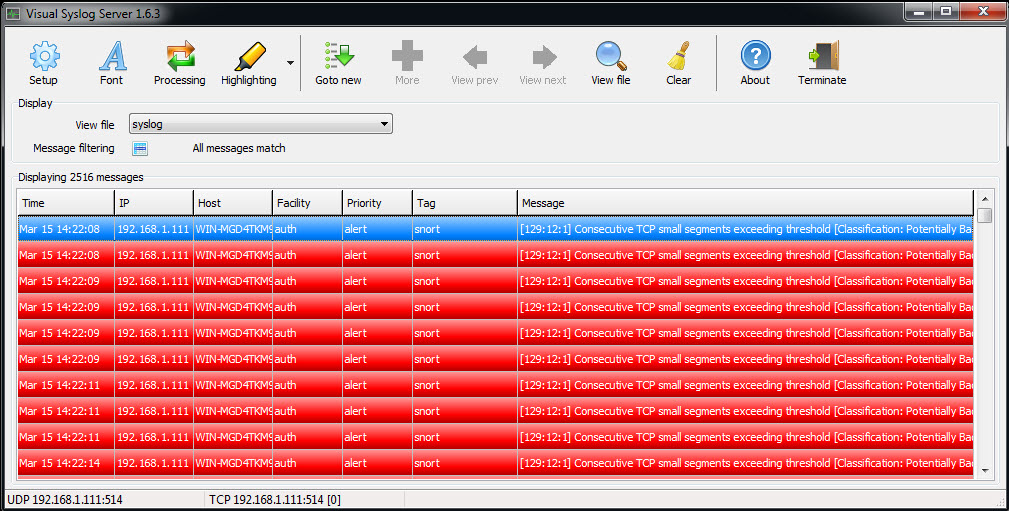
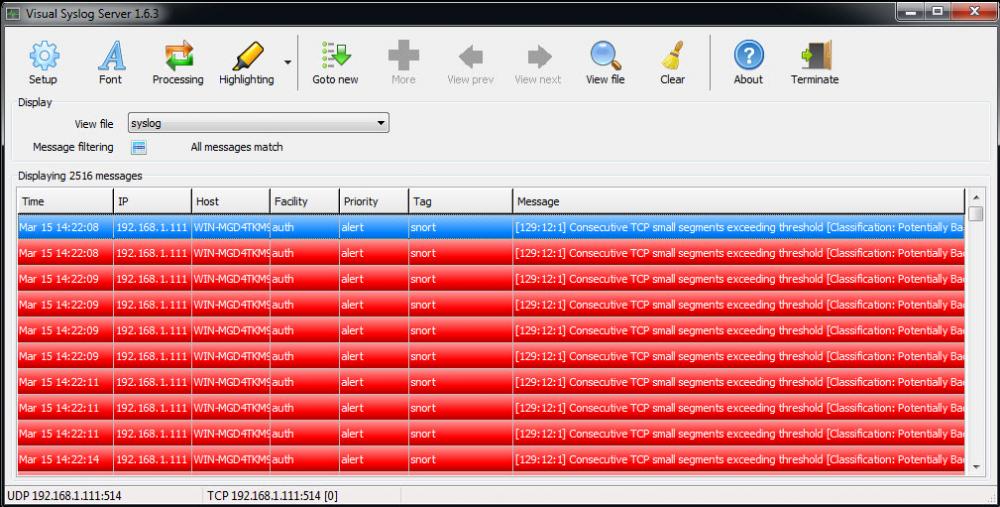
On the PC with VSS go to this URL. The IP address will be displayed and populated in the Remote Address dialog box. Just add port 514 to Port Number dialog box, and left-click 'Check'. This will check to make sure the VSS port is open. If the port is not open then you will need adjust the firewall to allow TCP/UDP traffic for port 514
-
There is already one in the Companion Add-On section.. You might want to try a real free syslog server.
-
Morpheus replied to fahmiff's topic in Discussing Manual Installation for Apache2 with MySQL LoggingLooks like there was a problem with the modder file adding winids to the hosts file. add to hosts file: 127.0.0.1 winids
-
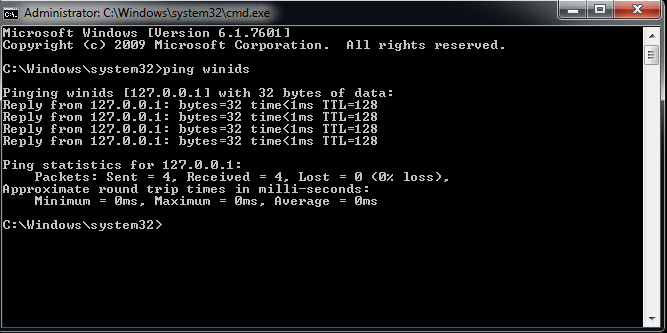
Morpheus replied to fahmiff's topic in Discussing Manual Installation for Apache2 with MySQL LoggingCan you ping winids?
-
Morpheus replied to fahmiff's topic in Discussing Manual Installation for Apache2 with MySQL LoggingThere was an issue with the repository being hacked and was taken down. The tutorials were changed in order to internally control that process.
-
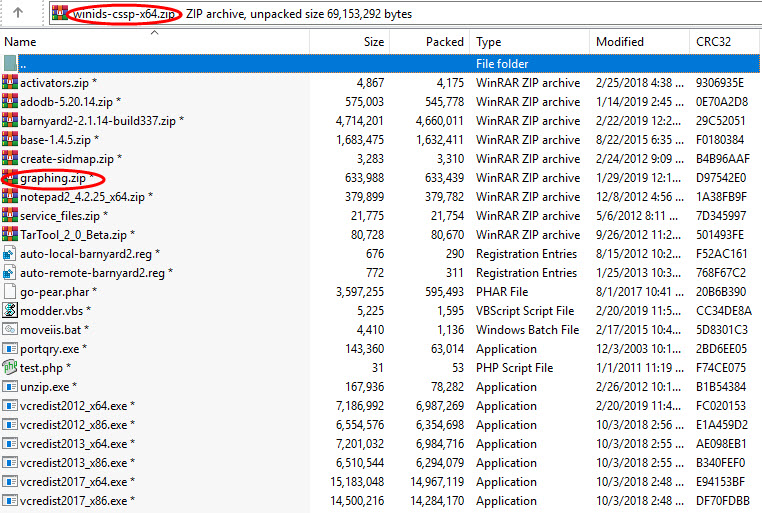
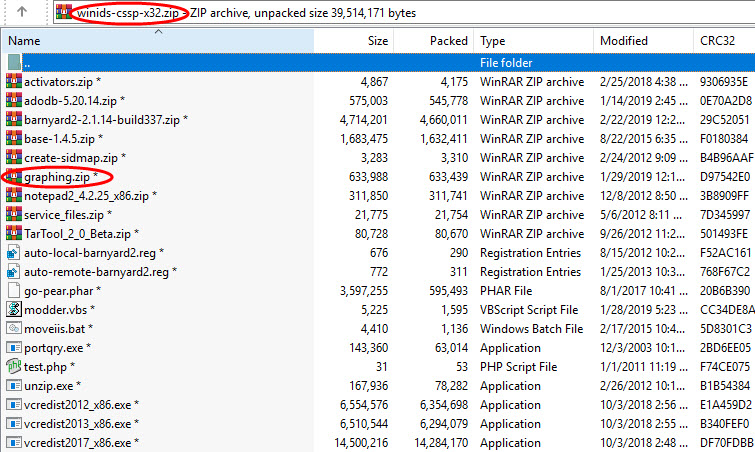
Morpheus replied to fahmiff's topic in Discussing Manual Installation for Apache2 with MySQL LoggingI just verified both 32/64 packs and the graphing is there. Follow the tutorial.
-
Morpheus replied to fahmiff's topic in Discussing Manual Installation for Apache2 with MySQL LoggingGo back to the section titled below to get the solution: Testing the Windows Intrusion Detection System (WinIDS) for network traffic
-
Morpheus replied to fahmiff's topic in Discussing Manual Installation for Apache2 with MySQL LoggingThe user has apparently fixed the issue without posting the root cause of the issue.
-
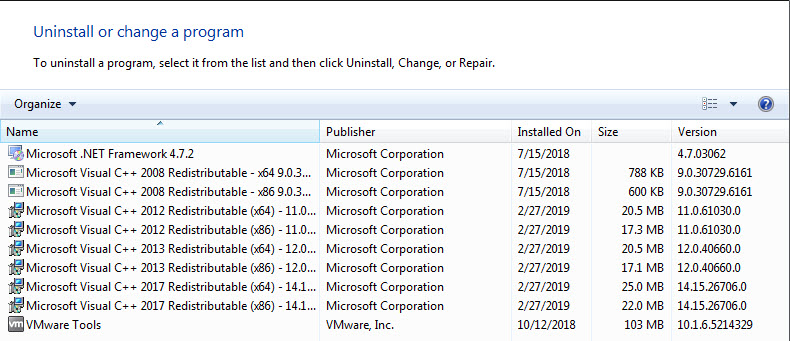
Morpheus replied to fahmiff's topic in Discussing Manual Installation for Apache2 with MySQL LoggingMake sure you have ran the modder.vbs file as Administrator and allowed it to reboot on its own. Make sure the test.php file has been copied to the d:\winids\apache24\htdocs\base folder. Make sure you can ping winids: Make sure all the required Microsoft Visual C++ packages have been installed: If all the above is correct then please attach the php.ini file and the httpd.conf file.
-
Morpheus replied to Jason.Wilson's topic in Discussing Manual Installation for IIS with PostgreSQL LoggingBeen doing these tutorials and have installed 1000+ IDS's in the last 15 years and not once have I had to add an extension. It sounds like you have a corrupted .EXE association.This issue can occur if a virus or other 3rd party application has changed or corrupted some default registry settings. These types of quirks seem to pop up when the installer fails to install the Windows Intrusion Detection System on a fresh install of Windows.
-
Morpheus replied to Jason.Wilson's topic in Discussing Manual Installation for IIS with PostgreSQL LoggingThere is something odd about your Windows environment requiring the extensions?
-
You need to change line 900 in the php.ini Change from: ;extension=php_mysql.dll Change to: extension=php_mysql.dll Your PHP in IIS is not configured correctly. Stop the IIS server, copy the file in the attached zip to the C:\Windows\System32\inetsrv\config folder, and restart the IIS server. applicationHost.zip
-
What happens when put the test.php file in d:\winids\inetpub\wwwroot\base folder and then from a browser type http://winids/test.php Attach your php.ini file located in the d:\winids\php folder Attach your applicationHost.config file located in the C:\Windows\System32\inetsrv folder.
-
Item 1: Go back to the section titled Configuring IIS for PHP, and the Windows Intrusion Detection Systems security console and complete again. Item2: It appears there was a time delay for some reason. Try it again. Make sure your not routing through a proxy.