



Morpheus
Administrators
-
Joined
-
Last visited
Everything posted by Morpheus
-
Morpheus replied to lillypad_33's topic in Discussing Manual Installation for IIS with PostgreSQL LoggingCan you attach your snort.con as a file? Don't post it in a replay because the editor strips things out.
-
It appears that Sorcefire has added some items that will need additional configuring in the OS. For now edit the snort.conf to the below: Original Line(s): decompress_swf { deflate lzma } \ Change to: # decompress_swf { deflate lzma } \ The decompression fault for SWF files requires an additional library (LZMA). I have made a request to the development team to look into this problem, and they are looking into it.
-
Try this config file. snort.conf
-
Morpheus replied to lillypad_33's topic in Discussing Manual Installation for IIS with PostgreSQL LoggingWhat OS are you installing this on?
-
Morpheus replied to linda.carter's topic in Discussing Manual Installation for IIS with MySQL LoggingI have no idea where you got that snort.conf because it's not matching the one included in the current rules tarball, which is the one that must be used. You need to go back to the tutorial and start over, as there are numerous omissions in the snort.conf file.
-
Morpheus replied to linda.carter's topic in Discussing Manual Installation for IIS with MySQL LoggingHow are you running snort?
-
Morpheus replied to linda.carter's topic in Discussing Manual Installation for IIS with MySQL LoggingIt looks like it's not reading the snort.conf file. I'm guessing you are using something: d:\winids\snort\bin\snort -v -i1 Try: d:\winids\snort\bin\snort -v -c d:\winids\snort\config\snort.config -i1 The above line may need to be tailored to you specific needs? Note: Those WARNING: signs are usually only informational.
-
Morpheus replied to linda.carter's topic in Discussing Manual Installation for IIS with MySQL LoggingSome find it easier to copy and past the password from the tutorial, or the download page. They are identical passwords.
-
Morpheus replied to linda.carter's topic in Discussing Manual Installation for IIS with MySQL LoggingYou are typing the wrong password. Go back and look again.
-
-
The problem you are having is with the OS. I'm not sure why Visual C++ is failing to install, but is a requirement of Apache. This is the first time that problem has been reported. You might try a clean install of the OS and give it another try.
-
Morpheus replied to Sally S's topic in Discussing Manual Installation for IIS with PostgreSQL LoggingI completed a fresh install using Server 2008 R2 and when I preform the test for Barnyard2, I get the below: --== Initializing Barnyard2 ==-- Initializing Input Plugins! Initializing Output Plugins! Parsing config file "d:\winids\barnyard2\etc\barnyard2.conf" +[ Signature Suppress list ]+ ---------------------------- +[No entry in Signature Suppress List]+ ---------------------------- +[ Signature Suppress list ]+ WARNING: invalid Reference spec 'url,'. Ignored WARNING: invalid Reference spec 'url,'. Ignored WARNING: invalid Reference spec 'url,'. Ignored WARNING: invalid Reference spec 'url,'. Ignored WARNING: invalid Reference spec 'url,'. Ignored WARNING: invalid Reference spec 'url,'. Ignored WARNING: invalid Reference spec 'url,'. Ignored WARNING: invalid Reference spec 'url,'. Ignored Barnyard2 spooler: Event cache size set to [32768] INFO database: Defaulting Reconnect/Transaction Error limit to 10 INFO database: Defaulting Reconnect sleep time to 5 second ERROR database: postgresql_error: ERROR: operator does not exist: ` integer LINE 1: SELECT `ref_system_id`, ref_system_name FROM reference_syste... ^ HINT: No operator matches the given name and argument type(s). You might need to add explicit type casts. [CacheSynchronize()]:, SystemCacheSyncronize() call failed. ERROR: database [DatabaseInitFinalize()]: CacheSynchronize() call failed ... Fatal Error, Quitting.. Barnyard2 exiting database: Closing connection to database "snort" Attached is build 336 and it works. Your existing config file will work. I have a note in the Barnyard2 users group about this problem. barnyard2-2.1.14-build336.zip
-
Morpheus replied to jmcclure's topic in Discussing Manual Installation for Apache2 with MySQL LoggingIf Snort is setup correctly queries to the log folder are defaulted to the snort folder.
-
Morpheus replied to jmcclure's topic in Discussing Manual Installation for Apache2 with MySQL LoggingIt appears you have some sort of problem with the log folder (permission, etc...).
-
Morpheus replied to jmcclure's topic in Discussing Manual Installation for Apache2 with MySQL LoggingMake sure there is a log folder in the snort folder This looks odd: ERROR: Portscan log file 'log/\portscan.log' could not be opened: No such file or directory. Try this: preprocessor sfportscan: proto { all } memcap { 10000000 } sense_level { low } logfile { portscan.log }
-
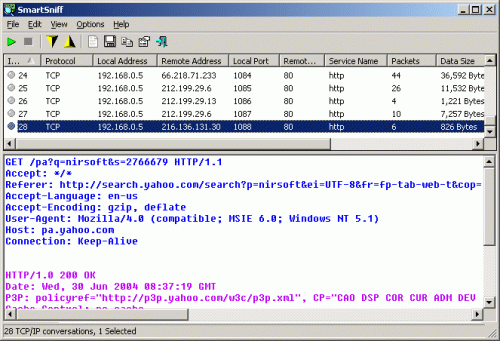 SmartSniff is a free packet sniffing tool that allows you to capture TCP/IP packets passing through your network adapter and view the captured data as a sequence of conversations between clients and servers. With the help of this network monitoring utility, you can view TCP/IP conversations in ASCII mode or as a hex dump.
 -
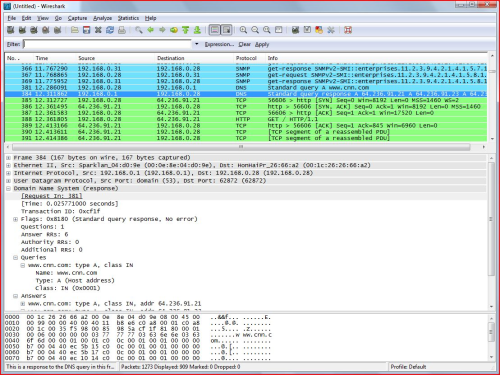 Wireshark is one of the popular free packet sniffing tools for Windows. This tool can give you an ability to see what’s happening on your network at a microscopic level.
 -
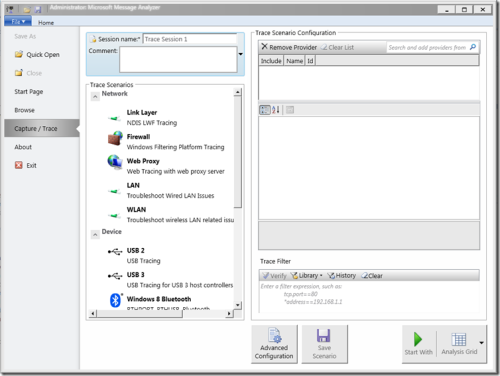 Microsoft Message Analyzer is a tool for capturing, displaying, and analyzing protocol messaging traffic. It is the successor to NetMon 3.x and a key component of the Protocol Engineering Framework (PEF), created by Microsoft to improve protocol design, development, documentation, testing, and support. With Message Analyzer, you can capture live data or retrieve archived message collections from saved files such as traces and logs. Message Analyzer also allows you to display data in a default tree grid view as well as selectable graphical views that employ grids, charts, and timeline visualizer components, providing high-level data summaries and other statistics. Update: Microsoft Message Analyzer (MMA) was retired as of November 25, 2019. There is currently no Microsoft replacement for Microsoft Message Analyzer in development. Note: I would say it is a must-have tool for any network administrator, given how much you can accomplish with it. A dedicated TechNet blog for Microsoft Message Analyzer is available.
 -
Morpheus replied to jmcclure's topic in Discussing Manual Installation for Apache2 with MySQL LoggingTry this one... snort.conf
-
Morpheus replied to jmcclure's topic in Discussing Manual Installation for Apache2 with MySQL LoggingAttach your snort.conf
-
Morpheus replied to richartes's topic in Discussing Manual Installation for IIS with PostgreSQL LoggingYou should have already set up the switch for the correct interface, and you shouldn't be guessing at this point in the tutorial. The correct format, and has been fixed: 'include $RULE_PATH/test.rules' At this point there have been so many problems that my suggestion it wipe the drive and start over fresh and follow the tutorial verbatim.
-
Morpheus replied to richartes's topic in Discussing Manual Installation for IIS with PostgreSQL LoggingIt is normal for Barnyard2 to stop at waiting for data. There needs to be events triggered to move past that. To namually trigger events try this.
-
Morpheus replied to richartes's topic in Discussing Manual Installation for IIS with PostgreSQL LoggingDid you go to the section titled Testing IIS, and the PHP installation and complete? Did the test.php display the PHP summary?
-
Morpheus replied to richartes's topic in Discussing Manual Installation for IIS with PostgreSQL LoggingGo to the section titled Configuring IIS for PHP, and the Windows Intrusion Detection Systems security console and complete. Go to the section titled Testing IIS, and the PHP installation and complete. To manually start Barnyard2: Open a CMD window with Administrator privileges and type 'd:\winids\activators\start.bat' (less the outside quotes), and tap the 'Enter' key. Closing the window will close Barnyard2. Shrink the Barnyard2 window to the task bar for normal operations.
-
Morpheus replied to richartes's topic in Discussing Manual Installation for IIS with PostgreSQL LoggingMake SURE barnyard2 is not running, but it shouldn't be. Uninstall the PostgreSQL server. You might be able to do this simply by running the PostgreSQL server install again, and choosing to uninstall. Remove everything the uninstall will allow. You can also go to the Add/Remove programs to uninstall. After uninstall go to the d:/winids folder and delete the PostgreSQL folder, and reboot. Go to the section titled Installing the PostgreSQL Database Server and complete. Go to the section titled Configuring the PostgreSQL Database Server and complete. At the CMD prompt type 'd:\winids\postgresql\bin\pg_ctl restart -w -t 10 -D d:\winids\postgresql\data\ -m f' (less the outside quotes), and tap the 'Enter' key. Go to the section titled Configuring Barnyard2 checking to make sure Barnyard2 was correctly configured, and continue to complete tutorial.